Digital Integrated Operating Room: The Complete Guide
A non-technical, long-form guide for contractors and hospital planners — covering the definition, building blocks, real workflows, implementation levels, market landscape, and common mistakes in digital OR projects.
- A digital integrated operating room connects surgical video sources, displays, recording, and teaching into one coordinated workflow.
- It is built from six core blocks: sources, switching/routing, displays, control interface, recorder, and storage.
- Four implementation levels allow staged rollout — from basic video integration (Level 1) to full hospital IT integration (Level 4).
- Success depends on usability, training, and maintenance ownership — not technology complexity alone.

1. Introduction
Operating rooms increasingly rely on video, imaging, and digital documentation. But in many hospitals, information is scattered across separate screens and devices — one for the endoscope, one for patient monitoring, another for imaging, and separate tools for recording and teaching.
A digital integrated operating room (commonly called a "Digital OR") is a system that brings those parts into a single, predictable workflow — so surgical teams can focus on the procedure, not on "which cable goes where."
2. What a Digital OR Is — and What It Solves
The simplest definition: a Digital OR is a system that helps an OR team view, switch, record, share, and manage surgical video and information from a centralized interface.
What it is
A coordinated setup of sources (endoscope, cameras, monitors), displays, switching, recording, and — optionally — device control and hospital IT connections.
What it is NOT
Not a surgical robot. Not "AI surgery." Not only a big screen. Not always a hospital-wide IT project — it can start with a single room.
Pain Points a Digital OR Addresses
Digital OR is easiest to understand when linked to the everyday problems OR teams face. The following are the most common pain points — and what integrated systems change in practice.
Neck fatigue & blind angles
Traditional ORs often place endoscope monitors in corners, forcing awkward head turns. A Digital OR routes any source to the best front-view display, reducing strain and improving situational awareness.
Cable "spider-web" chaos
Temporary floor cables create clutter, trip hazards, and plug errors. Structured in-wall routing distributes signals logically and eliminates daily reconnection problems.
Slow switching & miscommunication
"Which input is this?" delays happen when staff manually switch monitors or move devices. A Digital OR provides simple source selection and presets ("scenes") for fast, consistent layout changes.
Unreliable recording
Without integration, teams use ad-hoc solutions — phones, standalone recorders, or nothing. A Digital OR enables consistent, organized recording and snapshots with proper file management.
Limited teaching capability
Training hospitals need stable live viewing and structured replay. An integrated system makes it straightforward to share the right feed with appropriate permissions and basic auditing.
Imaging access in the OR
Teams may need CT/MRI/X-ray images mid-surgery. A Digital OR can support PACS/DICOM viewing, reducing the need to leave the sterile field to check imaging.
Inconsistent setup across shifts
Different staff may connect devices differently or choose different layouts. Presets ("scenes") and standard routing reduce variation and make daily workflow predictable across all shifts.
Slow OR turnover
Unplugging and rewiring between cases wastes time and creates errors. Clean structured routing and defined default presets shorten turnover and reduce last-minute switching problems.
3. History & Development Timeline
Digital OR systems evolved as OR video became more important and more complex. Understanding the eras helps planners set realistic expectations for where a new project sits on the maturity curve.
Era 1 — Standalone Devices and Analog Video
Each device came with its own monitor and controls. Video sharing existed but was messy: adapters, manual switching, and inconsistent quality.
Era 2 — Early Integration (Basic Switching + Wall Displays)
Hospitals began centralizing video signals so teams could choose what appeared on a main display. This reduced clutter and improved team coordination.
Era 3 — Recording, Teaching, and Remote Viewing
As training needs grew, OR video recording and "teaching room" viewing became common. Hospitals started to formalize how cases are recorded, stored, and shared.
Era 4 — Workflow, Permissions, and Long-Term Management
Modern systems focus on usability (one-button actions), user roles and permissions, and operational stability — updates, logs, support, and long-term governance.
4. How a Digital OR Works: The 3 Integration Layers
Think of Digital OR integration as three distinct layers. Many planning misunderstandings disappear when teams use this model to define scope.
| Layer | In plain language | Typical examples |
|---|---|---|
| Video layer | Move images from sources to the right screens. | Endoscope → wall display; monitor → PIP; C-arm → teaching room |
| Control layer | Operate devices in a consistent, integrated way (optional). | Room camera control; light/table interfaces; "scene" presets |
| Data layer | Record, organize, search, and share information safely. | Case recording; patient folders; export permissions; audit logs |
5. Core Building Blocks (Explained Simply)
Most digital OR systems are built from the same ingredients. The difference between projects lies in packaging, commissioning quality, and maintenance ownership.
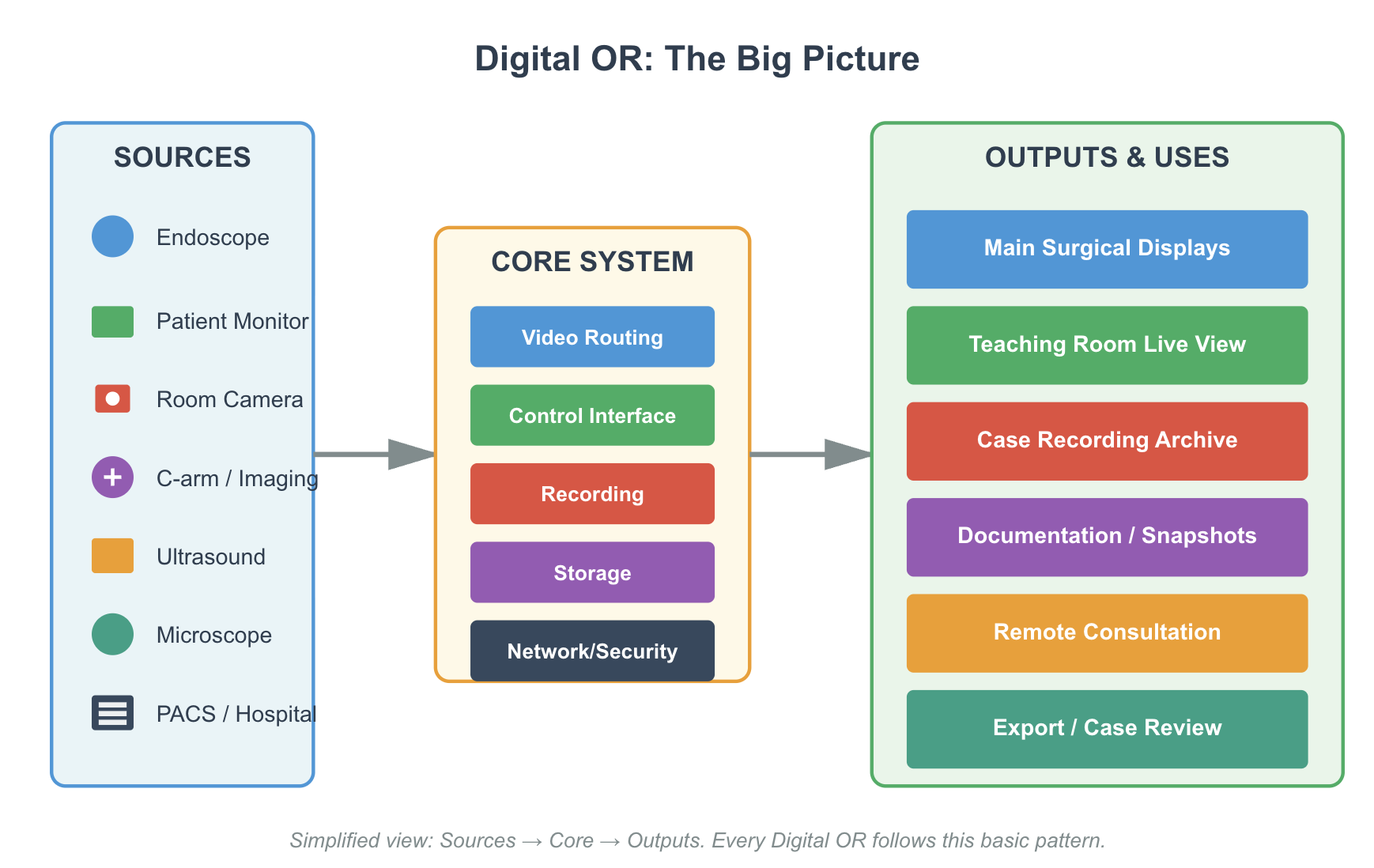
Block 1 — Sources (What Generates the Signals)
- Endoscope camera system — usually the primary video source
- Surgical field camera — overview of the operative field
- Room / panoramic camera — for teaching and documentation
- Patient monitor — vitals output signal
- C-arm / ultrasound / microscope — specialty-specific sources
Block 2 — Switching / Routing
Switching is like directing traffic: the system decides which source appears on which screen. Multi-view layouts such as picture-in-picture (PIP) or side-by-side are common and clinically useful.
Block 3 — Displays
Displays can be a main wall display, near-patient displays, boom displays, or teaching room screens. Placement and line-of-sight matter more than maximum screen size.
Block 4 — Control Interface
This is usually a touch panel, in-wall console, or workstation. For non-IT users, the interface should feel like: select source → choose layout → record → save/export. Simplicity is a clinical safety feature.
Block 5 — Recording & Storage
Recording can be local (inside the room) or centralized (server/NAS). Local recording is simpler to implement, but governance — who owns the files, who can export — must be defined before go-live.
Block 6 — Audio for Teaching / Communication
Teaching and conferencing workflows require properly planned audio: microphones, echo cancellation, and clear roles for who controls the microphone. Audio is frequently overlooked and frequently the reason teaching rooms underperform.
6. Standard BOM Checklist (Vendor-Neutral)
This is a practical, vendor-neutral Bill of Materials checklist for a standard digital integrated operating room project. Not every item is needed on Day 1, but these are the most common building blocks across all project types.
| BOM Item | What it does | Notes / options |
|---|---|---|
| Central cabinet / rack | Houses system core: routing, recording, power, network | Plan front-service access, ventilation, and cleaning clearance |
| Video routing core | Selects and distributes sources to displays | Matrix-based or AV-over-IP; match port count to sources + growth headroom |
| Encoders / decoders (IP-based) | Convert video to/from network streams | Useful for multi-room distribution; requires correct network design |
| Recorder (video + snapshots) | Captures procedure video and still images | Define channels, codec, resolution, and retention policy at specification stage |
| Storage (SSD/NAS) | Stores case media files | Local SSD = simpler; NAS = better governance but network-dependent |
| Control interface (touch/workstation) | UI to choose sources, layouts, record, review | Presets ("scenes") are critical in low-skill environments |
| Main surgical displays | Primary viewing screens (wall/boom) | Placement and line-of-sight matter more than maximum size |
| Auxiliary displays (optional) | Extra displays for anesthesia, nursing, teaching | Improves teamwork when planned with specific roles in mind |
| Source input interfaces | Connections for endoscope, monitor, C-arm, ultrasound | Plan HDMI/SDI/DP; define an approved adapter strategy upfront |
| Signal conversion & isolation | Stabilizes compatibility and safety between devices | Medical isolation/grounding may be required by local standards |
| Room camera (optional) | Overhead/panoramic view for teaching or documentation | PTZ camera is useful for teaching but requires simple presets |
| Audio (optional — key for teaching) | Microphone + speaker for teaching/conferencing | Audio is where teaching room projects most commonly fail |
| Network switch | Connects system devices; required for IP video | Managed switch + VLAN if hospital IT requires network segmentation |
| Time synchronization (NTP) | Keeps timestamps correct for files and audit logs | Small item, high impact on case tracking and compliance |
| User login / permissions | Controls who can record, export, and administer | Essential when export is enabled; supports auditing requirements |
| UPS / power conditioning | Improves system stability during power events | Strongly recommended in emerging markets with variable power quality |
| Structured cabling + patch panel + labeling | Prevents plug confusion and reduces downtime | Labeling + port map = the most undervalued ROI item on any BOM |
| As-built documentation set | Service reference for future troubleshooting | Include wiring diagram, port map, presets list, and acceptance checklist |
| Service toolkit / spare kit | Fast recovery from common failures | Critical cables, adapters, spare SSD, and fuse set (minimum) |
7. Workflows in Real Life
Different vendors use different product names, but the following are the core capabilities that most digital OR projects actually use on a daily basis.
Workflow A — Show Endoscope + Vitals on the Main Screen
- 1Select the endoscope source and route it to the wall display.
- 2Enable PIP view and choose the patient monitor as the PIP source.
- 3Save as a preset if the same setup is used every day.
Workflow B — Switch Layouts During Surgery
- 1Start with endoscope full screen.
- 2Switch to split view (endoscope + C-arm / ultrasound) when needed.
- 3Return to default view with one touch via a saved preset.
Workflow C — Record a Case + Capture Snapshots
- 1Confirm storage is available — a green indicator is the ideal UI target.
- 2Tap Record at the appropriate moment.
- 3Tap Snapshot at key procedural events.
- 4Stop recording and confirm the file is saved in the correct case folder.
Workflow D — Find a Case and Export (Under Policy)
- 1Search by date / room / patient ID / procedure (as hospital policy defines).
- 2Open the case file list (video + snapshots).
- 3Export only if policy allows — some hospitals require supervisor approval for export.
Workflow E — Teaching Room Live View + Time-Shift
- 1Teaching room selects a live feed from the OR.
- 2Pause/rewind locally (time-shift) if supported, while the OR continues live.
- 3Apply microphone discipline: one person speaks at a time.
Workflow F — Remote Consultation / MDT
Remote collaboration is achievable, but requires stable network connectivity, defined permissions, and clearly agreed rules about what content can be shared externally. This is typically a Phase 2 implementation item.
8. Scenes and Device Control: What Is Realistic
Some digital OR systems also control devices and the room environment. It is important to set realistic expectations — not every device integrates cleanly, and not every hospital needs deep device control.
What Device Control Often Includes
- Room/panoramic camera control (PTZ presets)
- Basic room "scene" presets bundling routing + layout + camera preset
- Advanced systems only: lighting and surgical table interfaces (depends on brand compatibility)
Why "Scene Control" Matters
A "scene" is a preset that bundles multiple actions into a single button press. For environments with rotating staff or lower technical skill, presets reduce mistakes dramatically and create consistent daily workflows across shifts.
9. Recording, Export, and Governance
Recording is powerful — but it creates responsibility. Hospitals must align on governance policy before enabling recording and export, not after go-live.
What to Record
- Endoscope feed only?
- Endoscope + surgical field camera?
- Patient vitals on screen? (Some hospitals exclude identifiable data from recorded feeds.)
File Naming and Case Folder Logic
A simple rule prevents chaos: one case = one folder. Contents: recordings + snapshots + notes. The folder name should follow hospital policy (date + OR room + patient ID or anonymized code).
Export Rules (USB / Network)
USB export is convenient but increases privacy risk. Minimum requirements when export is enabled: user login and permissions, audit logging, and — if required by local regulation — encryption and/or watermarking.
10. IT & Reliability Basics
IT integration is where planners often get intimidated. The key insight: it can be staged. Many successful digital OR deployments begin as standalone room systems and add hospital IT connections later.
PACS / DICOM (Plain Language)
PACS is the hospital's imaging library (CT/MRI/X-ray). DICOM is the universal standard used to store and move those images. Integration allows the surgical team to view pre-operative imaging on OR displays without leaving the sterile field.
HIS / EMR
HIS/EMR systems hold patient records. Some Digital OR projects integrate patient lists for better case organization — this is usually a Phase 2 scope item that requires active hospital IT support.
VLAN in One Sentence
A VLAN separates OR system network traffic from general hospital traffic, improving both stability and security. Recommended for any project with IP-based video or hospital IT connections.
Updates, Logs, and Backups
- Updates: define who approves them and how frequently they are applied
- Logs: establish how to capture logs when something fails (for remote support and troubleshooting)
- Backups: if recordings matter, define a backup destination and verify it regularly
11. Implementation Levels (Level 1 → 4)
A staged approach is safer than starting with everything on Day 1. The table below maps typical capabilities to the BOM building blocks expected at each level.
| Level | What you can do | Typical BOM blocks | Best fit |
|---|---|---|---|
| Level 1 — Basic Video Integration | Show the right source on the right screen; simple switching | Central cabinet/rack; video routing core; main surgical display(s); source inputs; structured cabling + labeling; UPS (recommended) | New ORs wanting clean daily AV workflow with minimal IT complexity |
| Level 2 — Recording & Case Files | Record video + snapshots; basic case folder management; simple review and export | Level 1 + recorder; storage (local or centralized); control interface (touch/workstation); basic user roles; time sync | Hospitals needing teaching and documentation basics without heavy IT dependence |
| Level 3 — Teaching & Collaboration | Teaching-room live viewing; conferencing (optional); room camera workflows | Level 2 + teaching room display(s); encoders/decoders (if IP/multi-room); room camera; audio (mic/speaker); managed network switch | Teaching hospitals and training centers where daily case sharing is core to workflow |
| Level 4 — Hospital IT Integration | PACS/HIS integration; centralized archives; unified accounts; multi-room governance | Level 3 + PACS/DICOM viewing; HIS/EMR interface (if required); centralized NAS; audit logs; VLAN segmentation; backup strategy | Hospitals with strong IT support, defined data governance policies, and long-term operational ownership |
12. Digital OR vs. Digital Surgical Department
- Focus: stable video, recording, and workflow in one OR
- Can be largely standalone and deliver immediate value
- Lower IT dependency and governance overhead
- Right starting point for most hospitals
- Focus: shared video distribution, central archives, unified accounts
- Standardized workflows across all ORs
- High network dependency and mandatory governance
- Requires dedicated IT and operational ownership
13. Market Landscape
Digital OR projects typically combine multiple supplier types. Understanding the ecosystem explains why outcomes differ across hospitals with similar hardware.
Supplier Types (Ecosystem Overview)
OR Integration Suites
End-to-end systems combining video, control, recording, and workflows. Often premium-priced; full ecosystem lock-in is common.
Video-over-IP & Visualization
Infrastructure for moving high-resolution video across rooms. Often vendor-neutral and scalable across multi-room projects.
Endoscopy / Device Ecosystems
Devices central to OR video (endoscopy cameras, lights, tables). Integration depth and openness varies significantly by brand.
Data / Workflow Platforms
Focus on surgical documentation, analytics, governance, and interoperability with HIS/EMR systems.
Local System Integrators
Installation, commissioning, training, and ongoing support. Often the single most important factor in project success or failure.
Component Suppliers
Displays, capture cards, encoders, cabinets, audio — used within custom-integrated solutions at all levels.
Representative Market Players
Availability varies by country. Always confirm regional portfolio, installed references, and local support capability before selection.
| Player | Region | Type | Strength focus |
|---|---|---|---|
| Stryker (OR Integration) | USA / Global | OR integration suite | End-to-end OR integration ecosystem |
| Getinge (Tegris) | EU / Global | OR integration suite | OR integration + device/room operation + data and video |
| KARL STORZ (OR1 portfolio) | EU / Global | OR integration suite | Workflow + multi-device control + communication |
| STERIS (OR Integration) | USA / Global | OR integration suite | Integration options + perioperative ecosystem |
| Olympus | Japan / Global | Visualization + integration | Procedure-room visualization + integration approach |
| EIZO (CuratOR) | Japan / EU presence | Video management + OR panels | OR wall panels + video-over-IP management + surgical displays |
| Barco (Nexxis) | EU / Global | AV-over-IP platform | Uncompressed high-resolution AV-over-IP distribution |
| Richard Wolf (core nova) | Germany / Global | OR integration suite | Device operation from OR workstations + media management |
| Merivaara (OpenOR) | Finland / EU | Modular integration | User-friendly integration for varied hospital tiers |
| Mindray (MR-DOR) | China / Global | Digital OR vendor | Digital OR systems + perioperative portfolio (varies by region) |
| Caresyntax | USA / EU | Data/workflow platform | Vendor-neutral surgical data integration + analytics focus |
How to Evaluate Real Capability
- References: real installed sites in your region?
- Service model: who commissions, trains, and supports after handover?
- Governance: roles, permissions, audit, and export policy — clear or vague?
- Upgrade policy: how are software updates applied without disrupting OR schedules?
- Spare parts: critical components stocked locally?
14. Pros, Cons, and Poor Maintenance Scenarios
Benefits (Clinical + Workflow + Training)
- Team coordination: right source on the right screen, consistently.
- Teaching: live viewing and structured replay for surgical training.
- Documentation: recordings and snapshots enable review and quality improvement.
- Standardization: consistent, preset-driven workflows across all shifts.
Trade-offs and Risks
- More failure points: cables, settings, permissions, storage, and network all require monitoring.
- Training is mandatory for all daily users — not optional.
- Governance is required whenever recording and export are enabled.
- Maintenance cannot be zero if stable daily use is the expectation.
- "No signal" events become frequent and disruptive to surgery.
- Recording failures happen silently — storage full, wrong profile, incorrect time, permission errors.
- UI instability from overheating, dust accumulation, aging storage, poor power quality, or missed updates.
- Export chaos — privacy risk, missing files, wrong folder structure.
- Staff workarounds — teams revert to phone photos or standalone recorders, defeating the purpose of integration.
Practical Mitigations
- One-button defaults and locked presets for all daily workflows
- 2-minute daily check: signal → record test → storage → timestamp verification
- One named owner (biomed/IT/OR lead) responsible for monthly checks and support escalation
- Small spare kit: key cables, storage module, and critical adapters at minimum
- Signal check: Confirm main display shows the default source (endoscope) with normal color and brightness.
- Switching check: Switch to a secondary source and switch back.
- Recording test (10 seconds): Start → wait → stop → confirm file appears in today's folder.
- Storage check: Confirm sufficient free space is available (silent storage-full failures are common).
- Timestamp check: Confirm date/time is correct — wrong timestamps create messy case folders and audit problems.
15. Common Mistakes (and How to Avoid Them)
| Mistake | Why it happens | How to avoid it |
|---|---|---|
| Over-specifying 4K everywhere | Technology push from vendors without clinical justification | Define which sources genuinely benefit from 4K; specify others at 1080p |
| No acceptance test script | Commissioning rushed at project end | Write the acceptance checklist before installation; run all 6 workflows twice |
| Data policy agreed after go-live | Governance deferred during procurement | Define recording ownership, export rules, and retention policy at specification stage |
| Assuming PACS integration is simple | IT scope underestimated by OR team | Confirm PACS readiness early; stage integration as Phase 2 if IT cannot commit |
| Underestimating training | Training seen as vendor responsibility, not hospital responsibility | Budget for initial training + refresh sessions; assign a named system owner |
| No spare kit on site | Not included in project BOM | Include minimum spare kit (cables, adapters, spare SSD) in acceptance deliverables |
16. How to Choose the Right Scope
Use the following questions to define project scope without getting lost in IT terminology. These questions are directly applicable to contractor-to-hospital conversations and tender preparation.
- Which sources must be displayed? (endoscope, vitals, field camera, C-arm…)
- How many displays are needed, and where must they be positioned?
- Is 4K required for all sources, or only specific ones?
- Will recording be enabled? If yes: who owns the files, and who can export?
- Is a teaching room required on Day 1, or in Phase 2?
- Is PACS/HIS integration required on Day 1, or in Phase 2?
- Who is the named system owner after project handover?
17. Future Trends
- Better usability and safer defaults — simplified interfaces that reduce human error as a primary design goal
- Greater interoperability — clearer integration scope and more open APIs between OR systems and hospital IT
- Edge/offline-first design — architectures that function reliably without constant hospital network dependency, particularly relevant for emerging markets
- AI-assisted documentation and search — AI tools for case tagging, clip extraction, and structured reporting (governance frameworks still critical)
- Modular upgrade paths — phased hardware and software upgrade models that avoid full-system replacements
18. Frequently Asked Questions
No. Many hospitals start with a room-level video and recording system that functions as a standalone unit. PACS, HIS, and hospital network integration can be added later as Phase 2 scope items, once the hospital's IT team is ready to support them.
Not always. 4K is clinically valuable for endoscopy and minimally invasive surgery where image detail is critical. For room overview cameras, patient monitors, and secondary displays, 1080p is typically sufficient. Specify 4K where it changes clinical outcomes — not everywhere by default.
One named individual should be designated as system owner — typically a biomed engineer, IT coordinator, or senior OR nurse. This person is responsible for monthly checks, user training refresh, and escalating issues to the service team. Systems without a named owner consistently underperform within 12–18 months of installation.
Run all six core workflows (Section 7) as a checklist: show sources → switch layouts → record → save → find → export (if permitted by policy). Execute the sequence twice. If the team can complete all steps consistently, the system is ready for handover. Acceptance tests should be written before installation begins — not after.
A Digital OR focuses on making a single operating room's video, recording, and workflow stable and predictable. It can function as a largely standalone system. A Digital Surgical Department covers multiple ORs with shared video distribution, centralized archives, unified user accounts, and standardized governance across all rooms — which significantly increases IT dependency and operational complexity.
Level 1 covers basic video integration (right source, right screen). Level 2 adds recording and case file management. Level 3 includes teaching room live viewing and collaboration. Level 4 adds full hospital IT integration — PACS/HIS connections, centralized archives, and multi-room governance. Starting at Level 1 or 2 is recommended for most hospital environments.
Operational ownership. A system with clear presets, proper labeling, a named owner, and a simple daily check routine will consistently outperform a more technically complex system with no defined maintenance responsibility. Technology is secondary to ownership.
19. Terminology Glossary
Plain-language definitions for non-IT readers. Refer to this table when reviewing tender documents or supplier proposals.
| Term | Meaning (plain language) |
|---|---|
| Digital OR / Integrated OR | Centralized OR video and information workflow — view, switch, record, share, and manage from one interface |
| Source | Any device sending video into the system (endoscope, monitor, camera, C-arm) |
| Routing / switching | Choosing which source signal goes to which display(s) |
| PIP / PBP | Picture-in-picture / side-by-side multi-view layout |
| Latency | Delay between a real action and what is visible on the display — clinically significant for surgery |
| Scene preset | One-button configuration that sets routing, layout, and camera states simultaneously |
| PACS | Hospital imaging library — stores and provides access to CT, MRI, and X-ray images |
| DICOM | International standard format for medical images |
| HIS / EMR | Hospital information system / electronic medical record — holds patient data and case history |
| HL7 | Hospital messaging standard for transferring patient and case information between systems |
| Role permissions | System access controls — defines who can view, record, export, or administer |
| Audit log | Automated record of system actions (e.g., exports, login events) for accountability |
| VLAN | Virtual network separation — isolates OR traffic from general hospital network traffic |
| NTP | Network Time Protocol — keeps all system timestamps synchronized and accurate |
| PTZ camera | Pan-tilt-zoom camera — remotely controllable room camera used for teaching and documentation |
| NAS | Network-attached storage — a centralized file server used for case media management |
| UPS | Uninterruptible power supply — protects system from power interruptions and voltage fluctuations |
References & Further Reading
External resources for planners seeking vendor-specific documentation. Availability varies by country and region.
- Barco Nexxis (AV-over-IP for OR): barco.com
- EIZO CuratOR OR Wall Panel: eizo-or.com
- KARL STORZ OR1 Integration Portfolio: karlstorz.com
- Richard Wolf core nova: richard-wolf.com
- Stryker OR Integration: stryker.com
Planning a Digital OR Project?
Speak with ICARELIFE's technical team about scope, BOM, and implementation — from Level 1 basic integration to multi-room surgical department deployments.